## 1. Introduction & Overview
The home page is your starting point in DIMA-AI. It provides a clean, focused interface for selecting a workspace and starting new conversations with AI assistants. Whether you're beginning your first chat or continuing your work, the home page guides you through the process.
**Key Features:**
- Workspace selection and management
- Quick start for new conversations
- File attachment support
- AI-powered chat recommendations
- Quick access to common tools
- Personalized greeting and welcome message
## 2. Page Layout
The home page is organized into clear sections:
**Top Section:**
- Personalized greeting with your username
- Motivational message (changes daily)
**Center Section:**
- Workspace selector
- Chat input area with file attachment
- Send button
**Bottom Sections:**
- Quick Actions (when workspace selected)
- Chat Recommendations (when workspace selected)
---
## 3. Greeting & Welcome Message
### Personalized Greeting
**What You'll See:**
- Time-based greeting (Good morning, Good afternoon, or Good evening)
- Your username displayed in highlighted text
- Example: "☀️ Good morning **username**!"
**Greeting Times:**
- **Morning**: 5:00 AM - 11:59 AM
- **Afternoon**: 12:00 PM - 5:59 PM
- **Evening**: 6:00 PM - 4:59 AM
### Motivational Message
**Purpose:**
- Provides encouragement and context
- Changes randomly each time you visit
- Helps create a positive work environment
**Examples:**
- "Somewhere in this day is a win with your name on it."
- "You're doing better than you think."
- "Every time you show up, this place feels more capable."
---
## 4. Workspace Selection
Before you can start chatting, you need to select a workspace.
### Selecting a Workspace
**When No Workspace is Selected:**
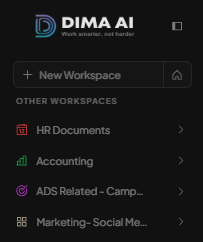
- All your workspaces appear as buttons in a grid
- Click any workspace name to select it
- Selected workspace appears as a highlighted badge above the input
**Workspace Display:**
- Workspaces are shown in a flexible grid layout
- Each workspace appears as a clickable button
- Workspaces wrap to multiple rows if needed
**Show More/Less Button:**
- Appears when you have many workspaces
- Click "Show More" to expand and see all workspaces
- Click "Show Less" to collapse back to compact view
- Automatically appears based on screen size and workspace count
### Removing Selected Workspace
**To Change Workspace:**
- Click the X button on the selected workspace badge
- Workspace list reappears
- Select a different workspace
**Auto-Selection:**
- If you only have one workspace, it's automatically selected
- Newly created workspaces are automatically selected
---
## 5. Chat Input Area
The main input area is where you type your message to start a conversation.
### Input Field
**Location:**
- Centered on the page
- Large, prominent text box
- Dark background with subtle border
**Placeholder Text:**
- Shows "Select a workspace" when no workspace is selected
- Shows "Ask anything..." when workspace is selected
- Changes based on your current state
**Typing:**
- Click in the input field to start typing
- Input automatically focuses when workspace is selected
- Supports standard text input
### Send Button
**Appearance:**
- Located to the right of the input field
- Gold/beige gradient button
- Send icon
**Functionality:**
- Click to send your message and create a new thread
- Disabled when:
- No workspace is selected
- Input is empty
- Thread is being created
**Keyboard Shortcut:**
- Press **Enter** to send your message
- Works the same as clicking the send button
---
## 6. File Attachments
You can attach files to your first message when starting a new conversation.
### Attaching Files
**Attachment Button:**
- Paperclip icon (📎) on the left side of input
- Click to open file picker
- Only enabled when workspace is selected
**Supported Files:**
- Images (automatically converted for AI analysis)
- Documents (PDF, Word, Excel, etc.)
- Text files
- Other file types (depending on workspace settings)
**Selecting Files:**
- Click attachment button
- Choose one or multiple files from your computer
- Files appear as preview chips above the input
### Attachment Preview
**Display:**
- Attachments appear as small chips above the input field
- Shows file name (truncated if long)
- Shows attachment count badge on button
**Removing Attachments:**
- Click X button on any attachment chip
- Removes that specific file
- Can remove multiple files individually
**Limitations:**
- Attachment button disabled when:
- No workspace selected
- Thread is being created
- System is processing
---
## 7. Starting a New Thread
Creating a new conversation thread is simple and happens automatically.
### How It Works
**Step 1: Select Workspace**
- Choose a workspace from the list
- Workspace badge appears above input
**Step 2: Type Your Message**
- Enter your question or prompt in the input field
- Optionally attach files if needed
**Step 3: Send**
- Click send button or press Enter
- New thread is created automatically
- You're taken to the conversation page
### Thread Creation Process
**What Happens:**
1. System creates a new thread in selected workspace
2. Your message is sent as the first message
3. Any attached images are included
4. You're automatically navigated to the thread
**Loading States:**
- Send button shows spinner while creating
- Input is disabled during creation
- "Creating thread..." indicator appears
**Empty Thread Reuse:**
- If you have an empty thread, system may reuse it
- Prevents creating unnecessary empty threads
- Shows notification if reusing existing thread
---
## 8. Quick Actions
Quick Actions provide fast access to common workspace tools.
### When Shown
**With Workspace Selected:**
- Compact pill-style buttons appear
- Three main actions available
- Shown above chat recommendations
**Without Workspace Selected:**
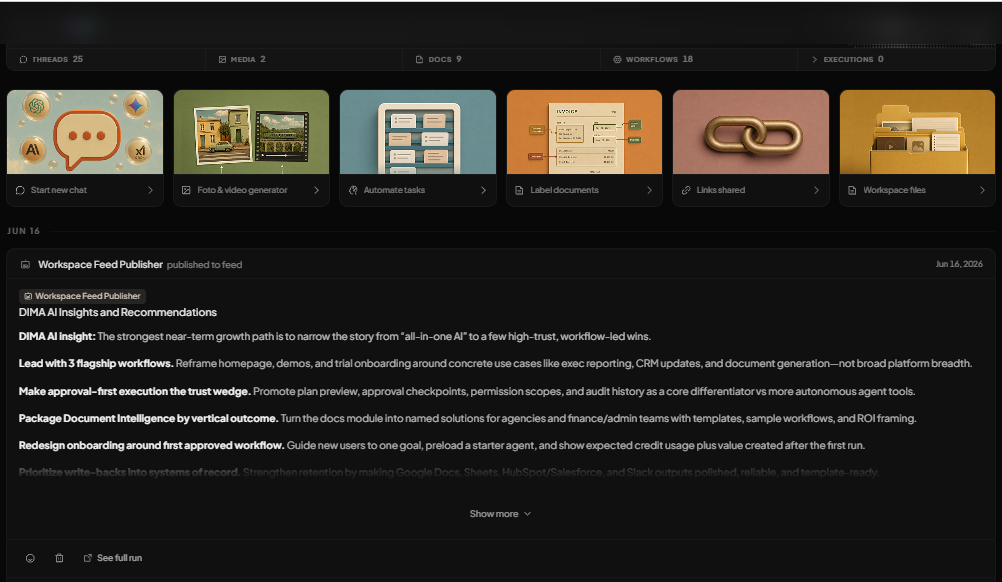
- Full card-style buttons appear
- Same three actions
- Shown below input area
### Available Actions
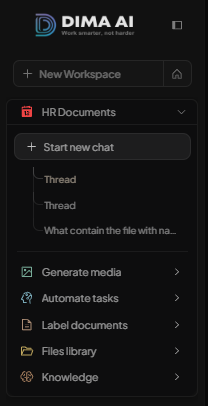
**Start Automating:**
- Access Digital Agents and workflows
- Create AI agents to automate tasks
- Orange/red gradient icon
**Start Designing:**
- Access Media Generation tools
- Generate images and visual content
- Purple/pink gradient icon
**Check Team Files:**
- Access Saved Items
- Browse shared documents
- Teal/blue gradient icon
### Using Quick Actions
**Navigation:**
- Click any action button
- Automatically navigates to that tool in selected workspace
- If no workspace selected, uses your first workspace
**Visual Feedback:**
- Hover effects show which action you're about to click
- Smooth transitions and color changes
- Clear visual indicators
---
## 9. Chat Recommendations
AI-powered recommendations help you discover useful questions to ask.
### When Shown
**Requirements:**
- Only appears when workspace is selected
- Requires workspace to have some activity
- May not show if workspace is brand new
**Display:**
- Grid of recommendation cards (desktop)
- Horizontal scrollable list (mobile)
- Shows 2-3 recommendations at a time
### Recommendation Cards
**Content:**
- **Title**: Short, descriptive question title
- **Prompt**: Full question text you can ask
- **Badge**: "AI Suggested" indicator
**Interaction:**
- Click any recommendation card
- Question automatically fills the input field
- Input field receives focus
- You can edit before sending
### Refreshing Recommendations
**Refresh Button:**
- Located next to "Recommended Questions" heading
- Click to get new recommendations
- Shows loading spinner while refreshing
**When Recommendations Update:**
- Based on workspace activity
- Based on documents in workspace
- Based on previous conversations
- Updates automatically over time
**Empty State:**
- Shows message: "Start chatting to get personalized recommendations"
- Appears when workspace has no activity yet
- Disappears as you use the workspace
---
## 10. Tips for Using the Home Page
### Getting Started Quickly
**First Time Users:**
1. Select your workspace (or create one if admin)
2. Type your question in the input
3. Click send or press Enter
4. Start your conversation
**Returning Users:**
- Workspace may auto-select if you only have one
- Input field auto-focuses for quick typing
- Use recommendations to discover new questions
### Efficient Workflow
**Workspace Selection:**
- Keep workspace names clear and descriptive
- Select workspace before typing to avoid confusion
- Use "Show More" if you have many workspaces
**Message Composition:**
- Be clear and specific in your questions
- Attach relevant files when needed
- Use recommendations for inspiration
**Quick Actions:**
- Use Quick Actions to jump to tools quickly
- Actions remember your selected workspace
- Great for switching between chat and tools
### Best Practices
**File Attachments:**
- Attach files before typing your message
- Images are automatically analyzed by AI
- Remove unwanted attachments before sending
**Recommendations:**
- Review recommendations before typing
- Click recommendations to use them as-is or edit
- Refresh for new suggestions
**Navigation:**
- Use Quick Actions for common tasks
- Home page is great starting point
- Navigate to workspace dashboard for more options
---