
The DIMA homepage is your starting point in DIMA-AI. It gives you a focused view where you can select the workspace you want to work in and quickly begin new conversations with AI assistants. Whether you’re starting your first chat or picking up right where you left off, the homepage helps you get moving fast.
Home page sections
- Workspace selection and management
- Access to the relevant tools
- Workspace feed with your latest interactions
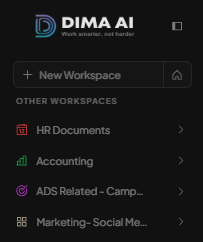
1. Workspace selection
- If you only have one workspace, DIMA-AI selects it automatically.
- If you create a new workspace, it’s also selected automatically.
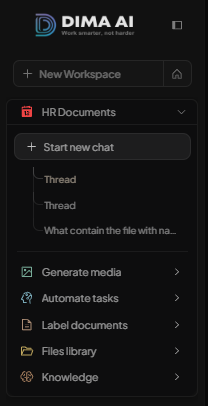
- If you have multiple workspaces, click the one you need—this expands the view to show the available conversation threads and the tools you can use.
---
2. Access to relevant tools

3. Workspace feed 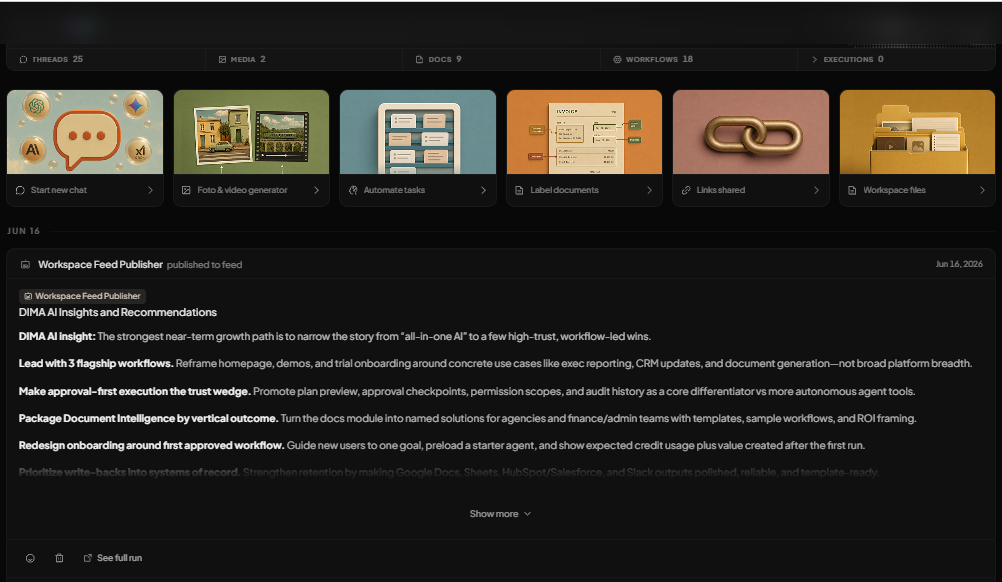
In DIMA, the Workspace Feed Publisher lets you see and access your automation history in one place. You can quickly review what has already been published, so you can stay organized and keep track of your workspace activity.
This makes it easier to return to an automation to quickly review, adjust, or reuse an automation without starting from scratch. By keeping your automation history visible and easy to access,it gives you a simple, practical way to manage automations more efficiently inside your workspace.