
Introduction
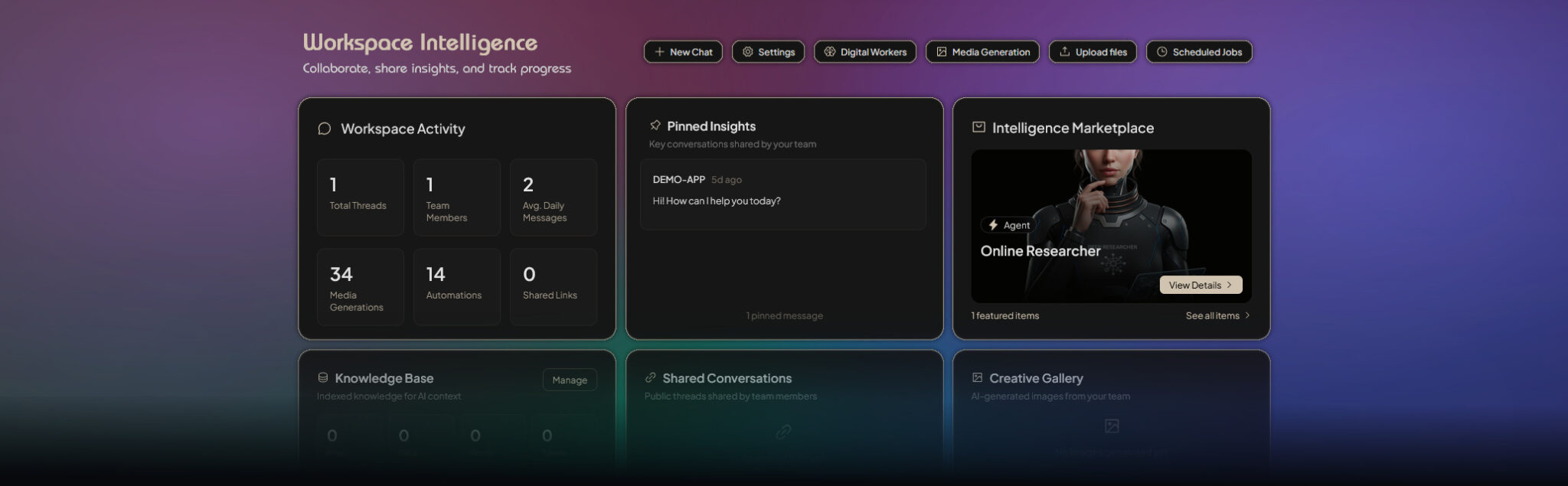
When you open a workspace, the dashboard gives you real-time metrics, collaborative content, and quick access to tools so you can start working faster.
Key features
- Customizable widgets — Enable or hide intelligence widgets to match your workflow
- Drag & drop layout — Rearrange widgets on desktop (1024px+ screens)
- Quick action bar — Start a chat, open AI agents, upload files, or manage settings
- Real-time metrics — Thread counts, agent calls, knowledge coverage, and team engagement
- Collaborative feed — Pinned insights, shared conversations, and AI-generated content
- Responsive grid — Layout adapts from 4 columns (XL) down to 1 column on mobile
How it works
Opening the dashboard
- Select a workspace from the sidebar or home page.
- Navigate to the workspace (or click the workspace name).
- The dashboard loads as the main view for that workspace.
The dashboard shows a header titled Workspace Intelligence with a subtitle, followed by the quick action bar and the widget grid.
Quick action bar
Below the header, the command strip provides one-click access to common actions:

| Action | Description |
| New Chat | Creates a new conversation thread and opens it in the chat interface |
| AI Agents | Opens the AI Agents management page (create, configure, manage agents) |
| Media Generator | Opens the image generation dashboard |
| Upload | Opens the file upload interface to add documents to your workspace |
| Layout Manager | Opens the widget selection modal |
| Settings (Admin) | Opens workspace configuration |
Managing your layout
Selecting widgets (Layout Manager)
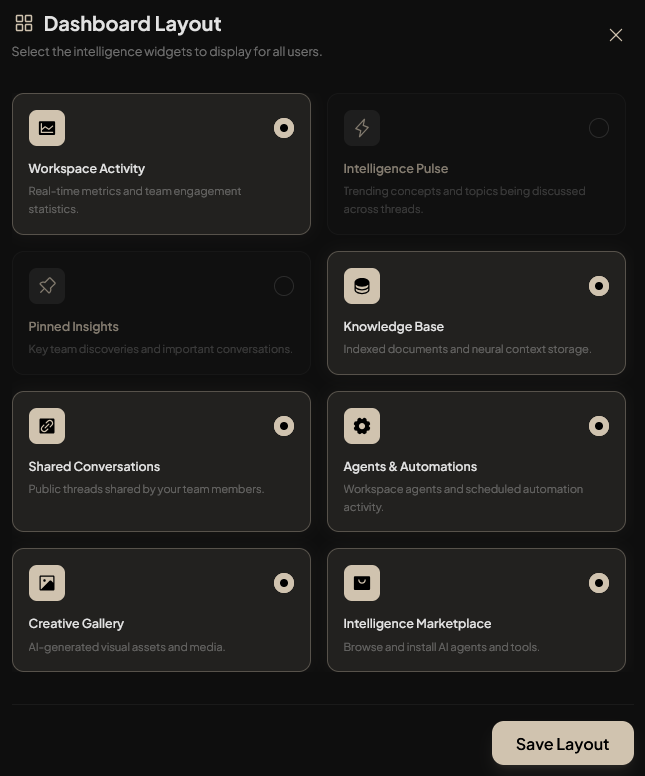
To enable or disable widgets:
- Click the Layout Manager button (grid icon) in the quick action bar.
- In the modal, click a widget card to toggle it on or off.
- Enabled widgets show a highlighted background and checkmark.
- Click Save Layout to apply changes.
Available widgets
| Widget | Purpose |
| Workspace Activity | Real-time metrics and team engagement (threads, users, agent calls, thumbs up) |
| Intelligence Pulse | Trending concepts and topics discussed across threads |
| Pinned Insights | Important messages and discoveries flagged by your team |
| Knowledge Base | Indexed documents, file types, token counts, and storage usage |
| Shared Conversations | Public threads shared by team members |
| Agents & Automations | Workspace agents, workflows, and scheduled automation activity |
| Creative Gallery | AI-generated images and visual assets from the workspace |
| Intelligence Marketplace | Browse and install AI agents and tools |
Rearranging widgets (desktop only)
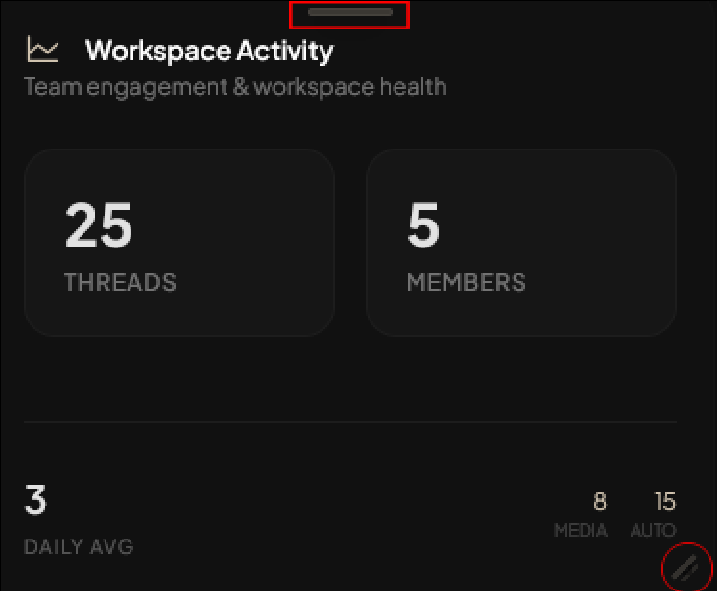
- Drag — Hover over a widget, grab the drag handle at the top, and drag to a new position.
- Resize — Some widgets support resize handles on edges or corners.
- Layouts auto-save when you drop or finish resizing.
Widgets snap to a responsive grid:
- XL (1400px+) — 4 columns
- LG (1200px+) — 3 columns
- MD (996px+) — 2 columns
- SM / Mobile — 1 column; drag & drop is disabled, widgets use a fixed order
When to use
- Daily check-in — See thread activity, recent pins, and shared links at a glance
- Team collaboration — Discover what others are working on via shared threads and pins
- Content discovery — Browse the Creative Gallery or Knowledge Base for existing assets
- Automation oversight — Monitor agents and scheduled workflows in Agents & Automations
- Quick workflows — Use the command bar to start a chat, upload files, or open tools
Troubleshooting
- Widgets not appearing — Check that widgets are enabled in Layout Manager. Refresh the page if you recently enabled them.
- Drag and drop not working — Ensure you're on a desktop screen (1024px+ width) and grabbing the drag handle. On tablets and mobile, widgets use a fixed layout.
- Layout not saving — Confirm you clicked Save Layout in the Layout Manager. Verify you have admin permissions.
- Quick action buttons missing — Layout Manager and Settings are admin-only. Text labels may be hidden on small screens; icons should still appear.
- Widget content not updating — Some widgets refresh automatically; for others, refresh the page or wait a few seconds for updates.