
Key features
- Workspace name — Display name shown in the sidebar and across the app
- Workspace image — Custom profile picture for the workspace
- Branding — Icon and accent color for the sidebar
- Suggested messages — Quick-start prompts shown on the home page (up to 12)
- Delete workspace — Permanently remove the workspace and all its data
Basic information
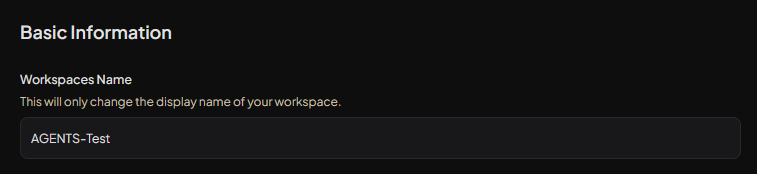
Workspace name
The workspace name appears in the sidebar, dashboard header, and workspace pickers.
To change:
- Edit the Workspace name field (2–80 characters).
- Click Update workspace when done.
Workspace image
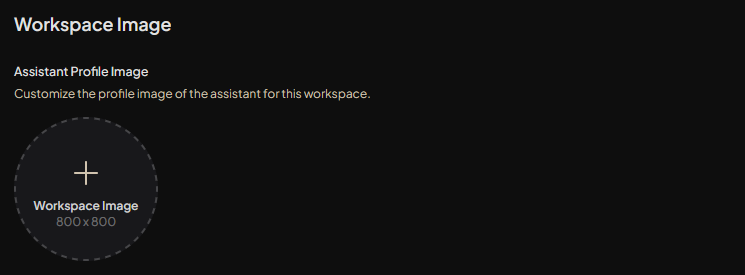
Upload a custom image to represent the workspace in lists and headers.
To change:
- Click the profile picture area.
- Select an image from your computer.
- The image is saved automatically.
Suggested messages
Suggested messages are prompt starters shown when users open the workspace. Each has a heading and a message that is sent when the user clicks it.
To manage:
- Add — Click the Add button. Maximum of 12 messages.
- Edit — Click a message card to edit its heading and message.
- Remove — Hover over a card and click the X button.
- Save — Click Save to apply changes.

Workspace branding
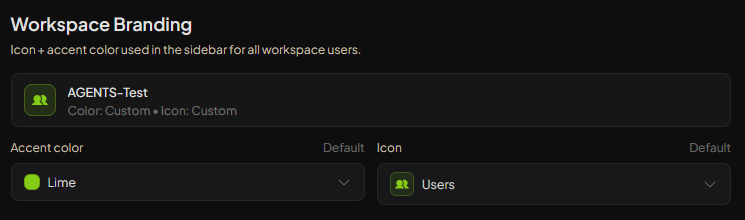
Branding defines the icon and accent color used in the sidebar for all workspace users.
To change:
- Adjust the icon and accent color in the branding section.
- Click Update workspace to save.
Danger zone
Delete workspace
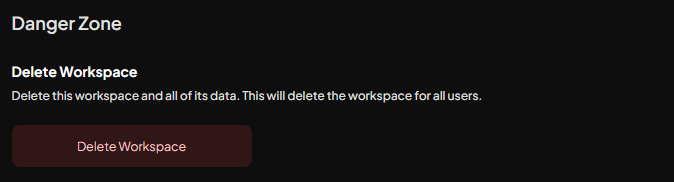
Deleting a workspace permanently removes all associated data: chats, documents, settings, and members. This cannot be undone.
To delete:
- Scroll to the Danger Zone section.
- Click Delete workspace.
- Confirm in the dialog.
- You are redirected to the home page if you were in that workspace, or the page reloads.
Troubleshooting
- Update button not appearing — Ensure you’ve changed a field. Some sections (name, branding) only show the button when there are unsaved changes.
- Suggested messages not saving — Use the dedicated Save button in the Suggested Messages section.
- Image not updating — Refresh the page after upload; the workspace image may cache briefly.
Related topics
For more information, see:
- Workspace Settings Introduction — Overview of all settings tabs
- Chat Settings — Configure AI behavior and prompts